How to Clear Your iPhone Gallery Before Visiting Portugal
Portugal is a beautiful country, and if you're planning to bring your iPhone along, you'll definitely want enough storage for all the photos and videos you'll take. From the tiled streets of Lisbon and Porto's riverfront to a day on the Algarve coast, there will be plenty you'll want to capture along the way.
You can clear iPhone photos before travel by reviewing unwanted pictures, similar shots, and forgotten files in your library. This guide takes you through checking your storage, saving the photos you want to keep, and removing unnecessary pictures and videos. You can do the cleanup at home before you leave or use some travel time to sort through your library on the way to Portugal.
Before You Start: Check Your Storage and Save Important Photos
Start by checking how much space your photos and videos actually occupy. This gives you a starting point for the cleanup and lets you compare the results afterward.
- Open Settings.
- Tap General > iPhone Storage.
- Wait for the storage breakdown to load, then find Photos in the app list.
- Note how much storage is used and how much remains available.

Next, save separate copies of any important photos you plan to remove from your phone. You can transfer them to a computer or an external drive. Open the copied files to check that the photos display correctly and the videos play before deleting the originals.
Check your iCloud Photos settings before you remove photos from your iPhone. AsApple explains, deleting a photo with iCloud Photos enabled also removes it from iCloud and your other synced devices. Having a photo in iCloud does not give you a separate copy that survives deletion.
Keep current travel documents easy to find, too. Save boarding passes to Wallet where supported, and download tickets and booking confirmations to Files. Check that you can open them offline before removing any corresponding screenshots.
How to Clear iPhone Gallery Before Your Trip
Filling up your iPhone photo library is surprisingly easy. Take photos and videos of everything you like, screenshot places you want to visit, save a few images for later, and then never look at half of them again. Over time, all of this adds up. That also means there are plenty of places to look when cleaning up your iPhone gallery.
Choose one of the methods below that fits your situation, or, even better, go through them one by one. You may be surprised by how much space you can free up before your trip.
1. Delete Unwanted Photos in the Photos App
Apple Photos is a useful starting point for blurred shots, accidental captures, and saved pictures you no longer need. Here's how to delete photos from iPhone in batches:
- Open Photos and browse your library.
- Tap Select, then choose the pictures you want to remove.
- Review your selection.
- Tap the trash icon and confirm the deletion.
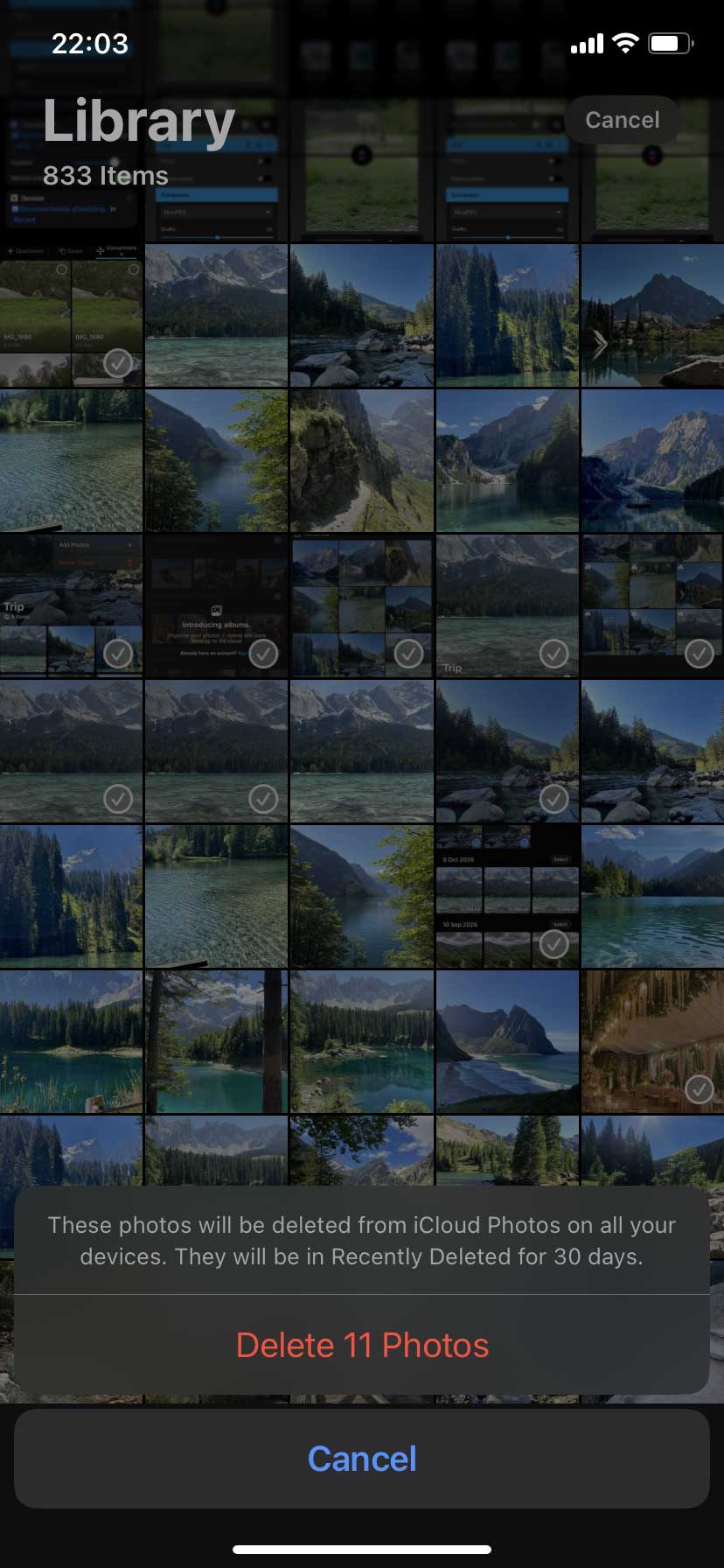
To narrow your search, browse Media Types, where you can review categories such as Screenshots, Videos, and Live Photos. If cleaning duplicate photos is part of your pre-trip cleanup, check Duplicates under Utilities and merge the copies Apple identifies. These sections are accessible through Collections on versions that have that tab.
Start with expired offers, unnecessary receipts, and screenshots of information you've saved elsewhere. Keep accommodation details, tickets, and instructions from your host accessible until you've finished using them. If your library is large, review one month or previous trip at a time to make each selection easier to check.

2. Find Similar Photos with a Cleanup App
Apple's Duplicates utility may leave you with several similar shots taken from slightly different angles. Comparing them across a large library takes time, so a photo cleanup app can help by grouping them together. For this step, you can use the Clever Cleaner app: its Similars section suggests a Best Shot in each group and lets you review or change the selection before deleting anything.
- Download Clever Cleaner from the App Store and grant it access to your photo library.
- Open Similars and wait for the groups to load.
- Open a group, compare the pictures, and adjust the selection so only unwanted shots are marked.
- Tap Delete and confirm your selection.

For a more thorough cleanup, check the app's other sections. Videos lets you sort recordings by size, while Screenshots brings screen captures together for review. Under Live Photos, you can delete unwanted pictures or convert selected ones into still images, removing their movement and audio. The app offers a free daily cleanup allowance, with paid options for higher usage.
3. Review Your Hidden Photos
Hidden photos disappear from your main library view, which makes them easy to forget. Hiding a picture doesn't delete it or free up the storage it uses. Before your trip, check this collection for old images and videos you no longer need.
- Open Photos and find Hidden under Utilities. On versions with a Collections tab, open that first.
- Unlock the collection using Face ID, Touch ID, or your passcode.
- Review the contents, then tap Select and choose unwanted items.
- Tap the trash icon and confirm the deletion.

You don't need to unhide pictures before deleting them. If Hidden isn't visible, go to Settings > Apps > Photos > Albums and enable Hidden Album. On older iOS versions, Photos settings may appear directly under Settings.
Keep anything you still need, especially personal documents saved for the trip. Deleted items move to Recently Deleted, which we'll review next.
4. Empty Recently Deleted
Whether you delete pictures through Apple Photos or a cleanup app, they move to Recently Deleted, where they normally remain for 30 days. Review this collection to finish the cleanup and permanently remove files you no longer need.
Here's how to delete pictures from iPhone permanently:
- Open Photos and find Recently Deleted under Utilities. On versions with a Collections tab, open that first.
- Unlock the collection using Face ID, Touch ID, or your passcode.
- Check the contents and use Recover for anything deleted by mistake.
- Tap Select and choose the items you're certain you no longer need.
- Tap the More (…) button, choose Delete, and confirm.

Permanently deleted items cannot be restored through Recently Deleted. If you converted any Live Photos into still images, check that the still versions are saved before removing the originals.
Return to Settings > General > iPhone Storage and allow the storage breakdown to refresh. Compare it with your starting figure, leaving room for new photos, videos, offline maps, and other downloads you'll use in Portugal.
Free Up Space Without Deleting Photos
If you want to keep your entire library, iCloud Photos offers another way to free up iPhone storage for photos. With Optimize iPhone Storage enabled, full-resolution originals are stored in iCloud. When your iPhone needs more space, it can replace local originals with smaller versions and download the full-resolution files again when needed.
- Open Settings, tap your name, then go to iCloud > Photos.
- Turn on Sync this iPhone. Once syncing is enabled, Optimize iPhone Storage turns on automatically.
- If you already use iCloud Photos, open the same iCloud > Photos > iPhone Storage page and check that Optimize iPhone Storage is enabled.
- Connect your iPhone to Wi-Fi and power, and give your photo library time to sync with iCloud.

You'll need enough available iCloud storage for your photos and videos. Uploading and optimization can take time, so set this up before departure rather than expecting an immediate increase in free space.
Full-resolution files that aren't stored locally will need an internet connection to download. Save anything you'll need offline before traveling. Also remember that iCloud Photos syncs deletions: deleting a picture from your library removes it from iCloud and your other synced devices.
Keep Your Photo Library Manageable During Your Portugal Trip
A short review at the end of each day can keep new photos from piling up. While the day is still fresh, it's easier to choose between several shots of the same viewpoint or spot a video that started recording inside your pocket.
- Review repeated shots after each outing. Once you've photographed Lisbon's tiled facades or the coastline near Lagos, choose the versions you want to keep. Check small details before deleting alternatives.
- Save new memories regularly. If you use cloud storage, check that uploads have completed when you have a reliable connection. Keep a separate copy of especially important photos and videos.
- Check available storage before a busy day. Do this before a boat trip, a scenic drive, or another outing where you expect to record plenty of footage.
- Bring a portable drive for photo transfers. A USB flash drive or portable SSD compatible with your iPhone lets you copy photos and videos without bringing a laptop. Depending on your iPhone and the drive, you may need an adapter or additional power. After transferring files, open the copies to check that they saved correctly before deleting anything from your phone. Keep a second copy of especially important memories.
You don't need to sort every picture during your vacation. Focus on obvious unwanted files and leave difficult choices until you're home, where you can compare your favorite shots on a larger screen.
FAQ
Does deleting a photo album free up iPhone storage?
Deleting a regular album leaves its photos and videos in your library, so it won’t free the space those files occupy. Likewise, Remove from Album only changes where a picture appears. To reclaim storage, you need to delete the unwanted files from the library itself.
Why is the trash icon grayed out for some photos?
Photos synced to your iPhone from a computer may not be removable directly in the Photos app. To remove them, reconnect the iPhone to that computer and change the photo sync selection in Finder, Apple Devices, or iTunes, depending on your setup. Apply the changes to remove those synced pictures from the phone.
Which camera setting helps new travel photos take up less space?
On a compatible iPhone, go to Settings > Camera > Formats and select High Efficiency. This uses HEIF for photos and HEVC for videos, which take up less space than JPEG and H.264 at comparable visual quality. The setting applies to new captures, so it won’t shrink pictures already in your library. Some older software may require conversion before you can open or edit these files.
Conclusion
Set aside some time to clean up your photo library before leaving for Portugal. Keep separate copies of important memories, review your selections before deleting them permanently, and check that you have enough space for the photos and videos you plan to take.
Once your phone is ready, a quick review of unwanted shots during the trip can help keep that space available. You can then spend more time enjoying the places you came to see, with room to capture the moments you want to bring home.